Step 7 — Billing, Notifications & Analytics
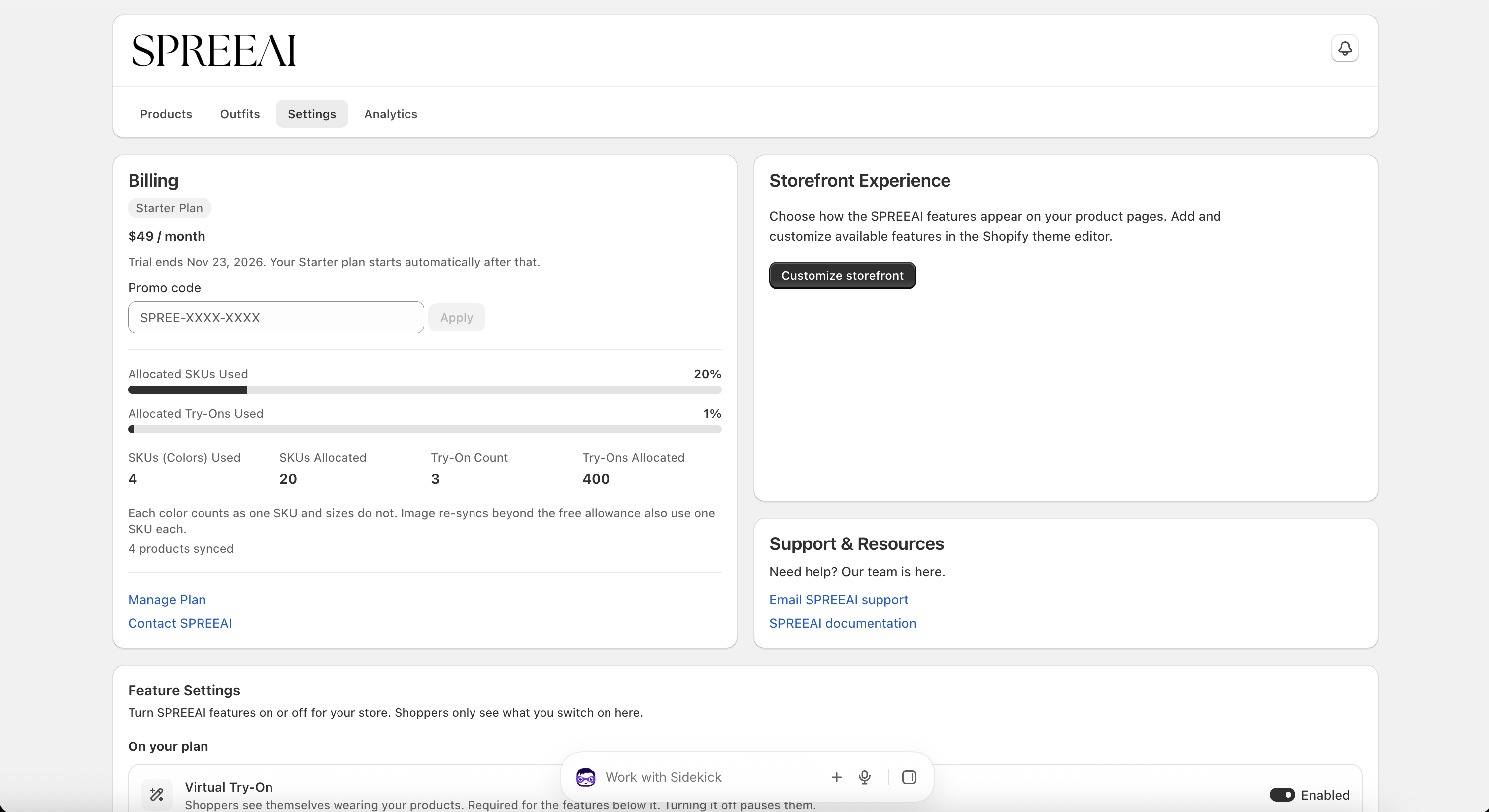
- Plan & Billing — On the Settings tab, the Billing card shows your current plan, usage, and allocations (SKUs and try-ons used vs. allocated). A new try-on can take up to 10 minutes to appear there
- Notifications — The bell on the dashboard lists in-app notifications, with a badge for unread items. Click an item to mark it as read, or Mark all read, and use its link to jump to the related products, usage, or billing page. Outside the free trial, billing warning emails are also sent to your store's contact email; see the FAQ. There are no notification preferences to change
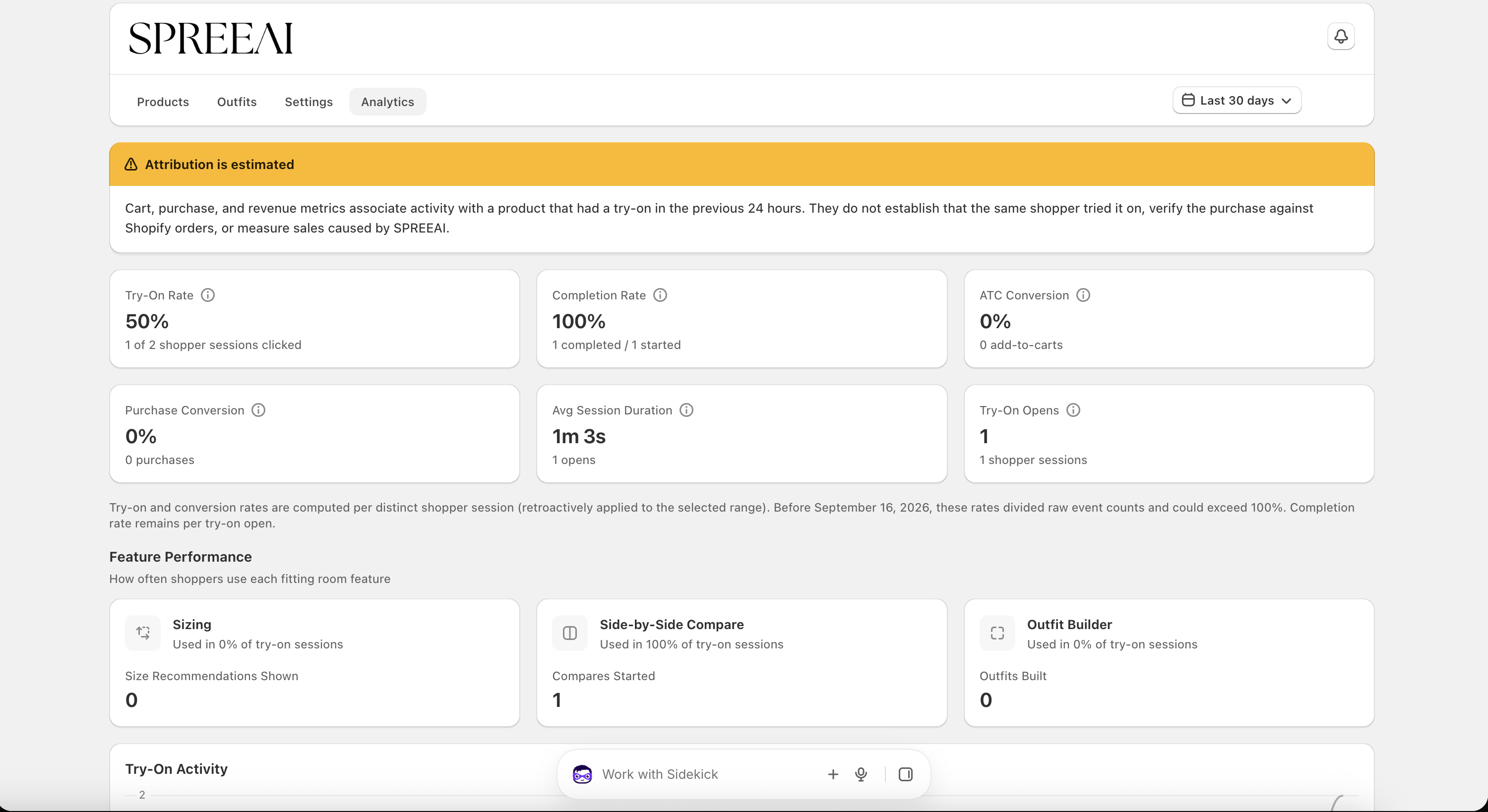
- Analytics — The Analytics tab shows how shoppers are engaging with your try-ons, including try-on rate, completion rate, conversion, sessions, per-product performance, and feature usage. See the Analytics Guide for what each metric means and how it is calculated