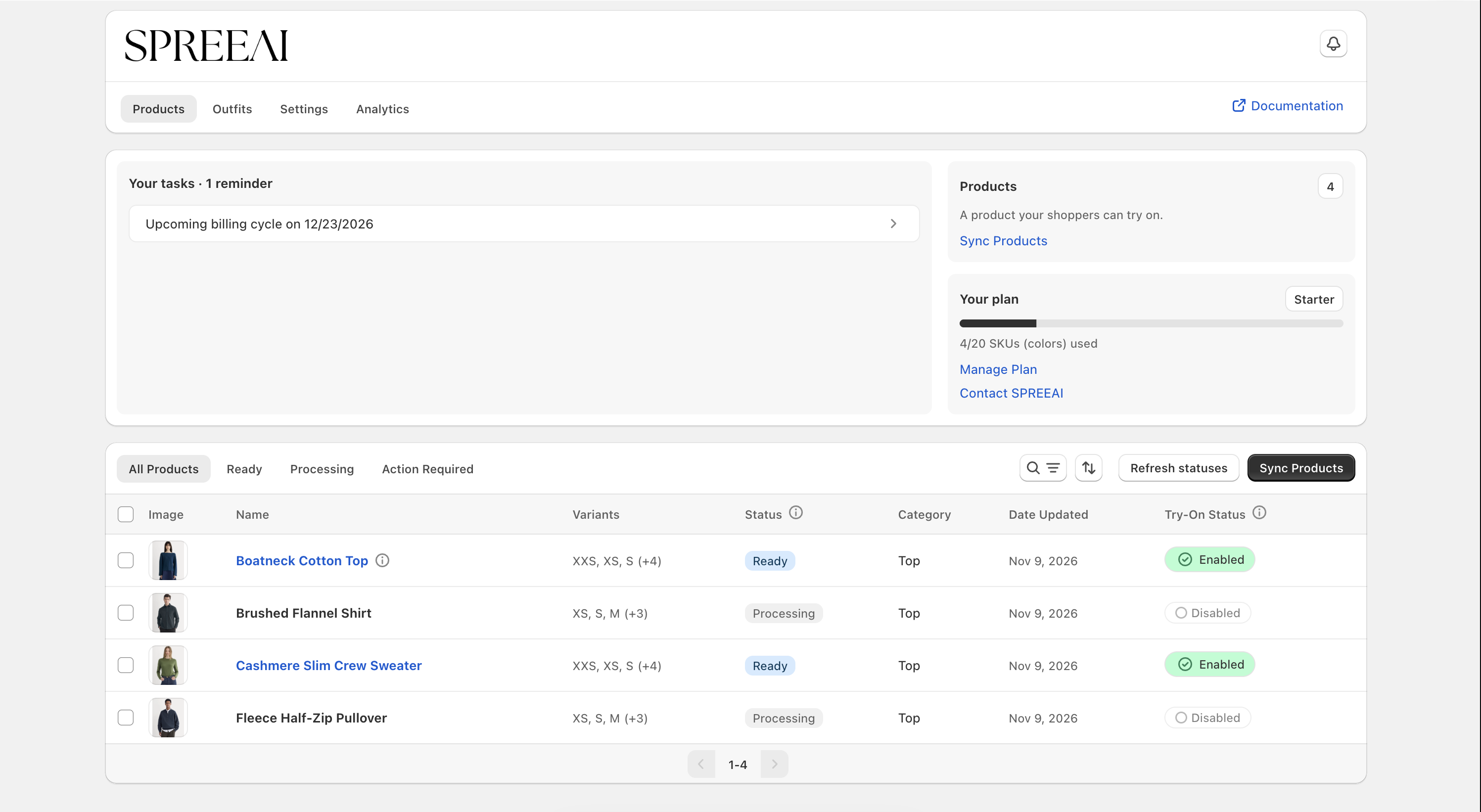
Step 3 — Sync Your Products
Bring products from your existing Shopify catalog into SPREEAI from the Products tab. Start with one product so you can check the whole process before repeating it for the rest of your catalog.
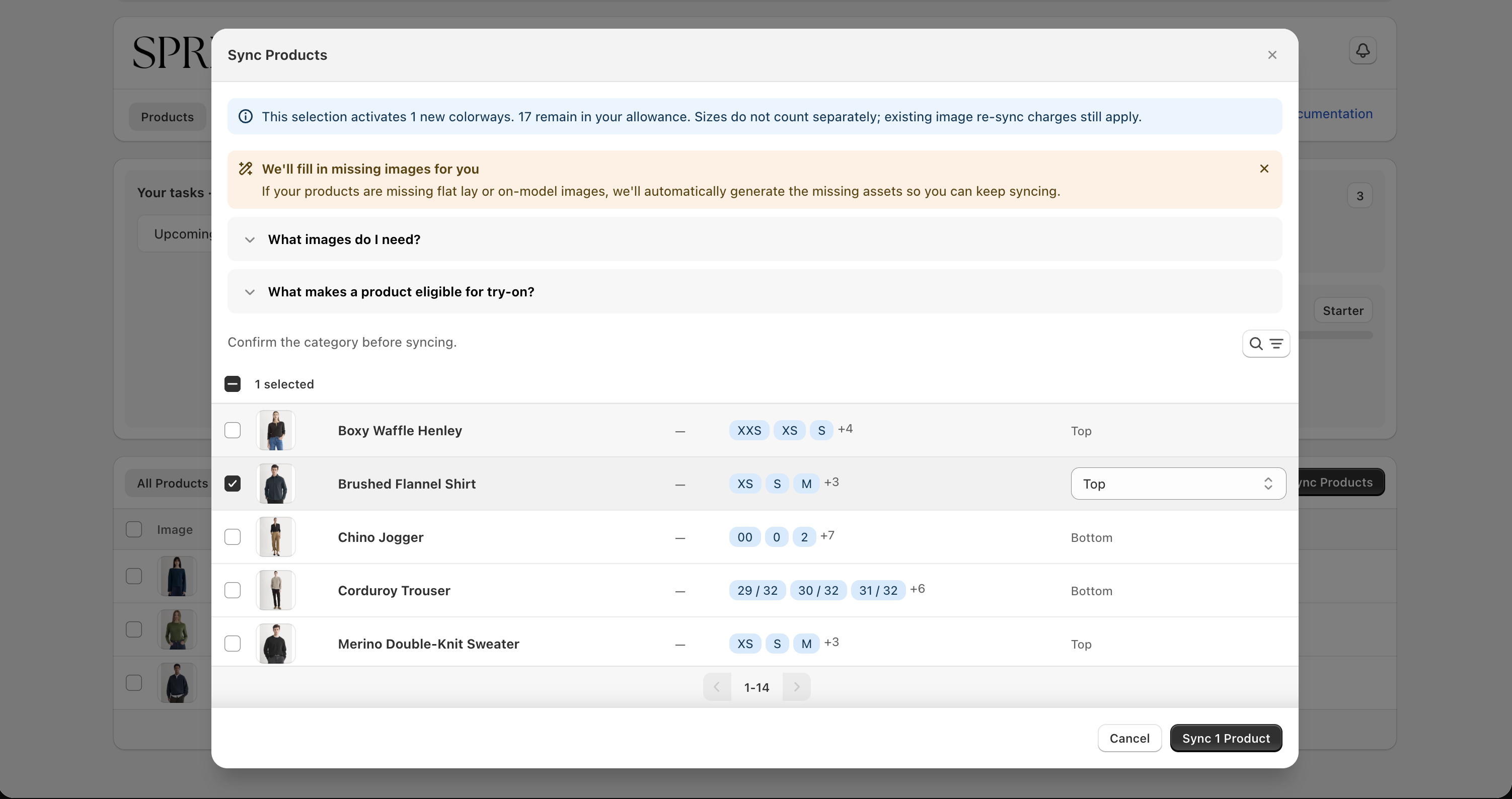
- Click Sync Products to open the Sync Products dialog, which lists the products in your store
- Check off the products you want to sync. A product that cannot be selected shows the reason; see Product Eligibility
- Review the category SPREEAI assigned to each product, such as Tops or Bottoms, and change it if it is wrong
- Check how many SKUs your selection uses and how many remain in your allowance
- Click Sync Products to submit them for try-on processing
Syncing sends only the products you selected and never changes your Shopify product data.
tip
Processing can take some time depending on how many products and colors you sync. You can leave the app while it runs, and continue with the next steps in the meantime.
Once synced, your products appear in the list on the Products tab with their current status.