Step 4 — Check Product Status
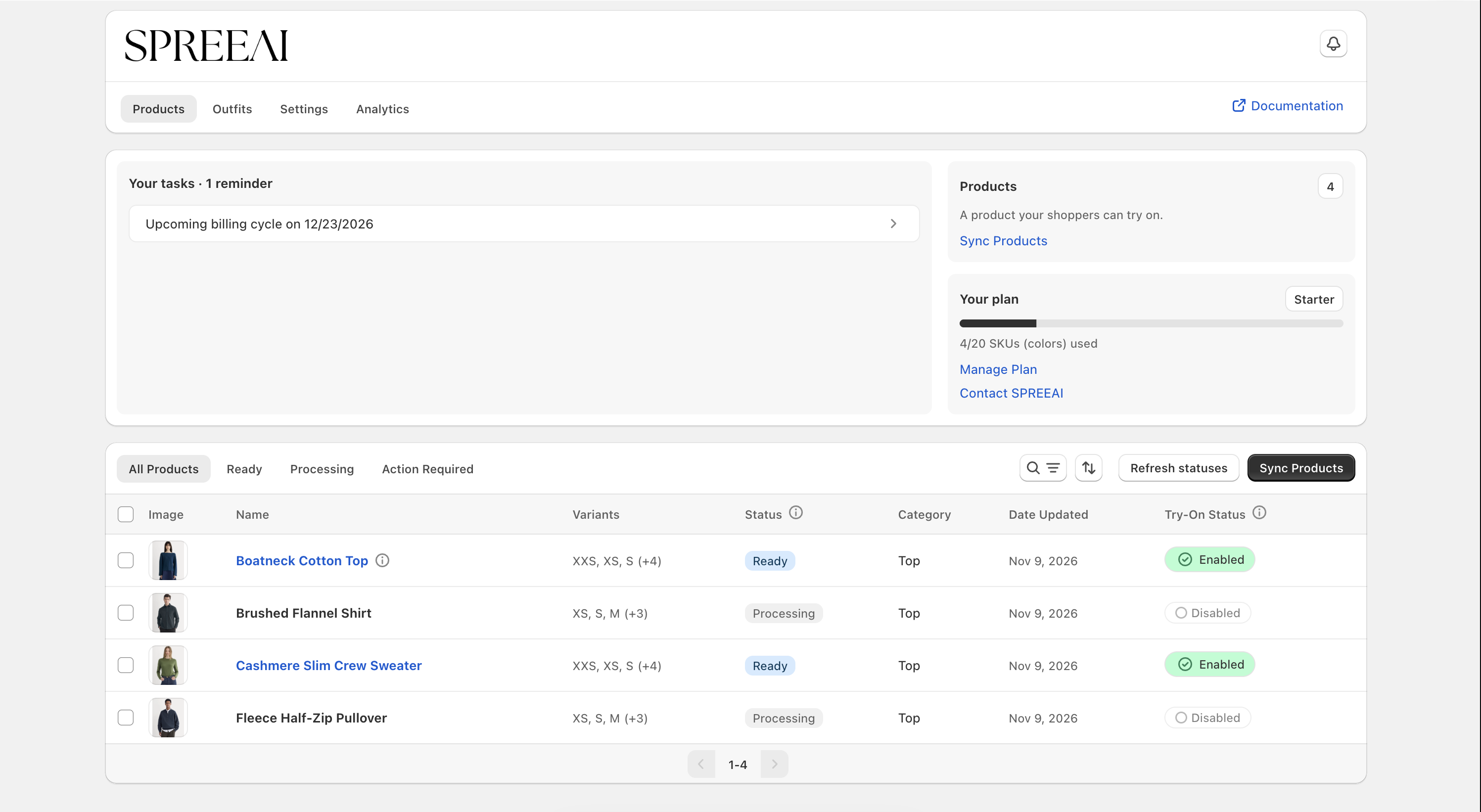
On the Products tab, your products are organized into status tabs:
- All Products — Every synced product, regardless of status
- Processing — SPREEAI is preparing the product for try-on
- Ready — Preparation is complete. The product is not visible to shoppers yet
- Action Required — The product needs your attention before it can proceed
A product whose try-on you have enabled shows the Live status. Click Refresh statuses if the list isn't updating. To stop a product that is still processing, select it and click Cancel Process.
Generated Images
If a product was missing a flat lay or an on-model image, SPREEAI generates it during processing. The product stays in Processing while the image is created, then moves to Ready or Action Required like any other product. An information icon next to the product name marks a generated image. There is no separate approval step for it, and it never replaces the images in your Shopify listing; review the product before you enable it, and reject it if the result is not accurate.
Fixing an Action Required Product
Open the product and read the reason shown, then fix that product only. You do not need to change the rest of your catalog.
| Reason | What to do |
|---|---|
| Missing product title or image | Click Fix in Shopify and add it |
| No images assigned to colors | Click Fix in Shopify and assign an image to each color's variant |
| A color is missing an image | Add an image to that color's variant. The other colors still sync |
| Missing SKU | Add a SKU to at least one variant of each color |
| Unsupported garment type | Check the supported product types. Only tops, bottoms, dresses, footwear, and accessories can be synced |
| Image resolution is too low | Upload an image of 2000 × 2000 pixels or higher in Shopify |
| Asset failed processing | Follow the action shown, or click Contact SPREEAI |
Re-syncing a Product
SPREEAI does not pick up Shopify changes on its own. When a synced product changes in Shopify, the app flags it with Resync it when you are ready, and the product keeps its current status until you re-sync it. After fixing a product:
- Make the change in Shopify (Fix in Shopify opens the product for you)
- Return to SPREEAI and select the affected products
- Choose Re-sync from the bulk actions
The product goes back to Processing, then to Ready or Action Required.
If you can't resolve an issue, open the Settings tab and click Email SPREEAI support in the Support & Resources card. Include your store address, the product name and color, its current status and exact error message, when you submitted it, and what you have already tried.