Step 5 — Set Up Your Storefront
While products are processing, add the SPREEAI Fitting Room to your product pages. The Fitting Room is a card with a Try it on you button that opens the SPREEAI fitting room, plus optional Compare looks and Build a look shortcuts.
Open the Settings tab, find the Storefront Experience card, and click Customize storefront.
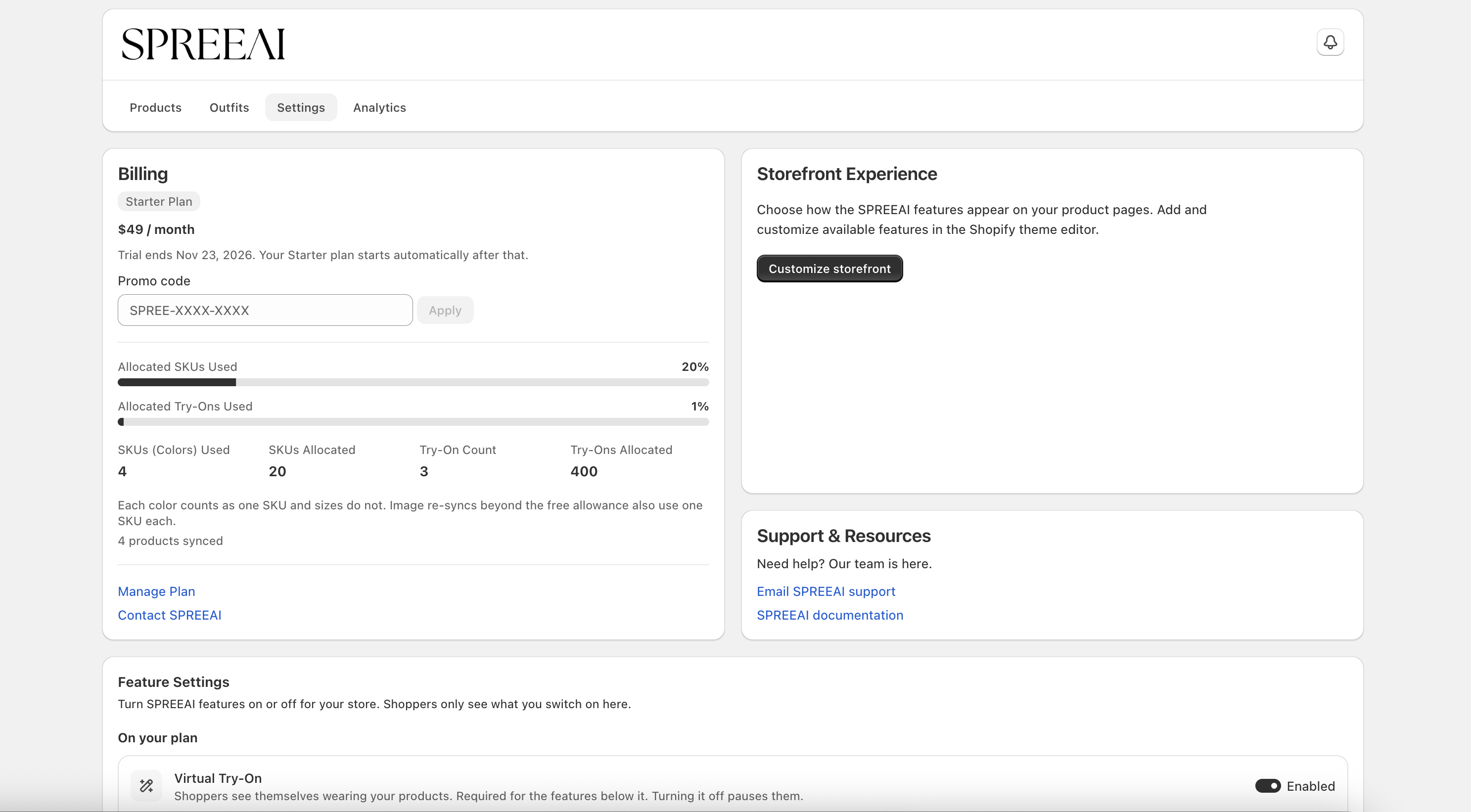
This opens your Shopify theme editor with the SPREEAI Fitting Room block added to your product page. Review it, move it where you want it, and click Save. No code is needed, and there is no app embed to turn on.
A SPREEAI block only shows on products whose template contains it. If your products use more than one product template, add the block to each template they use, and if you switch themes, add it to the new theme as well.
Add the Fitting Room Manually
To add the block to another template yourself, open Online Store → Themes → Customize in Shopify, open the product template your product uses, and in Product information click Add block → Apps → SPREEAI Fitting Room. Keep one Fitting Room block per template to avoid duplicate cards.
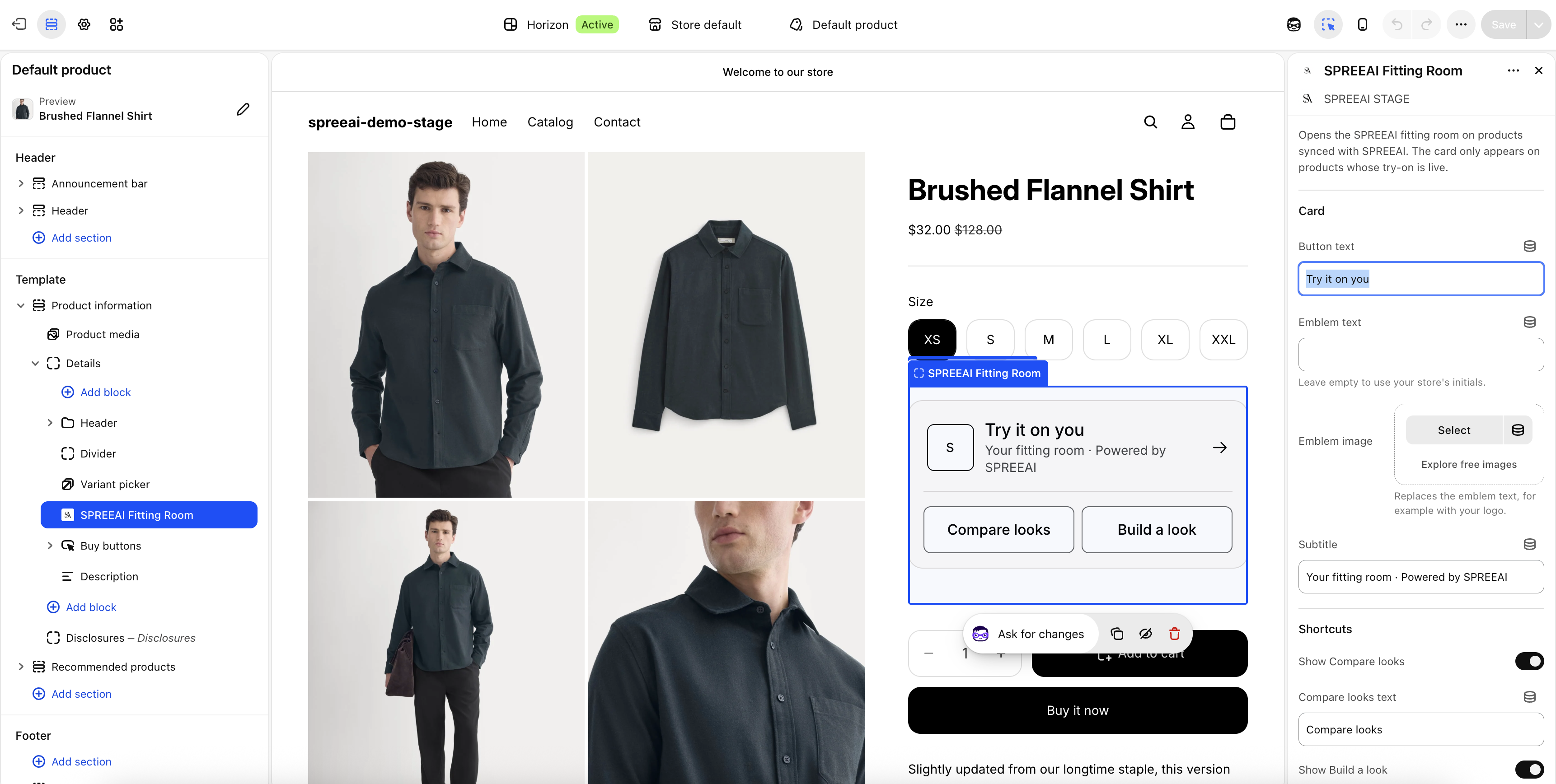
Customize the Fitting Room
Select the SPREEAI Fitting Room block to open its settings panel. The following properties can be adjusted to match your brand:
| Setting | Default | Description |
|---|---|---|
| Button text | Try it on you | The label of the main button |
| Emblem text | Your store's initials | The text shown in the emblem. Leave it empty to use your store's initials |
| Emblem image | None | Replaces the emblem text, for example with your logo |
| Subtitle | Your fitting room · Powered by SPREEAI | The line under the button |
| Show Compare looks | On | Shows the Compare looks shortcut |
| Compare looks text | Compare looks | The label of that shortcut |
| Show Build a look | On | Shows the Build a look shortcut |
| Build a look text | Build a look | The label of that shortcut |
| Text color, Border color, Background color | Your theme's colors | Leave the text color empty to use your theme's text color |
| Enable Add look to bag | Off | Lets shoppers add this product to their cart from the fitting room |
A shortcut only shows while its feature is also on in Feature Settings: Compare looks needs Compare, and Build a look needs Build a look.
Choose colors that keep the text easy to read, and check the result on both desktop and mobile. You can reposition the block by dragging it, and remove it with Remove block.
If SPREEAI Fitting Room is not listed under Add block → Apps:
- Check that SPREEAI is installed on this store, under Settings → Apps in Shopify
- Check that you are editing the theme your store uses, and the product template your product uses
- If Add block has no Apps tab at all, your theme does not support app blocks; see Check Your Theme
Other SPREEAI Blocks
The Fitting Room is the main entry point. You can also add a SPREEAI Find your size button near your size picker, and a SPREEAI Compare button on product cards. See Storefront Widgets for what each block does and how to customize it.
The original SPREEAI Try On Button block has been replaced by the Fitting Room. If your product template still has it, add the SPREEAI Fitting Room block, then select the Try On Button block and click Remove block so shoppers don't see two entry points.